


VidLife-Vision Splendor
4.017.00 Reviews
App Specs
- Version
- 1.1.0
- Updated On
- License
- Free
- Downloads
- 50,000+
- Developer
- Wolf Tech
- Categories
- Entertainment
- Platform
- Android
Screenshots
 Analysis by AppCompare
When I’m choosing a video app for a day out, I care about more than the editing screen: I want to know whether I can get from a clip on my phone to a finished video without the process becoming a chore. That makes connectivity part of the experience, especially when I’m working between places or trying to share something before the moment has passed. VidLife-Vision Splendor is an entertainment app from Wolf Tech, and its appeal is the promise of editing on a phone with a light interface. My recommendation is cautious, though: a polished-sounding workflow is useful only if the app’s real tools suit the kind of video I want to make.
Where a network connection matters
Video editing is often a mix of local work and online steps. Choosing clips and shaping a sequence can feel like a self-contained task, while sharing, browsing online material, or moving a project between services may depend on a dependable connection. I would plan around that distinction rather than assume every part of a mobile editor behaves the same way when signal drops.
For a practical test, I’d begin a small edit somewhere with reliable Wi-Fi, then check how far I can get before needing to publish or send it. That reveals the important boundary for your own routine: whether you can prepare a video on a commute and finish sharing it later, or whether your workflow is better kept to places with steady service. I wouldn’t start an urgent post just before entering a dead zone.
Short sessions on a phone
The strongest use case for a mobile editor is usually a focused job, not an attempt to replace every part of a desktop production setup. If I had a handful of clips from a family visit, I’d want to choose the moments, make a clear sequence, and add only enough polish to keep it engaging. That kind of task benefits from being able to work in short bursts while waiting for a ride or taking a break.
There is a trade-off: a phone screen makes it easy to work wherever I am, but it leaves less room to inspect fine timing and small details. I’d save careful adjustments for a quiet moment, use headphones when judging sound, and review the whole video before sharing. A quick edit can be convenient without being the right setting for precision work.
Recovering when a session is interrupted
Calls, low battery, a weak connection, or simply needing to put the phone away can interrupt an edit. For anything I care about, I’d avoid treating the first pass as the final copy: keep the original footage, check that the current work is retained before leaving the app, and reopen the project before making a last-minute commitment to publish. Those are sensible habits in any mobile editor, and they matter most when a clip would be difficult to recreate.
I’d also separate two kinds of failure. If a video takes too long to share, the connection may be the bottleneck; if the editing itself becomes awkward, switching networks is unlikely to fix the problem. Noticing which stage is slowing you down helps avoid wasting time troubleshooting the wrong thing.
Worth Reading Before You Choose

Flipboard Shows What News Apps Must Do Beyond the Feed

Switching to Android Auto Means Rethinking Your Driving Routine

Google Calendar Makes a Crowded Week Easier to Manage

Ludo King Makes the Most of the Minutes Between Plans

Baby Panda World Brings Quick Play to Modern Phones, but Its Game Library Feels Busy

ESPN’s Live Game View Makes Following Close Games Easier
Keeping mobile data in perspective
Video files can be large enough to make casual uploads a poor fit for a limited data plan. I’d do the editing and review first, then wait for Wi-Fi before sending a finished video if saving mobile data matters to me. That simple order also gives me a chance to catch an unwanted cut or sound level before the upload begins.
For a regular creator, it helps to decide in advance which clips deserve a full edit and which are better left as quick shares. That keeps both the project and the upload manageable. I’d be especially selective when filming several takes: keeping only the useful material in the working sequence makes review easier, even if I preserve the originals separately.
Getting Started with VidLife-Vision Splendor
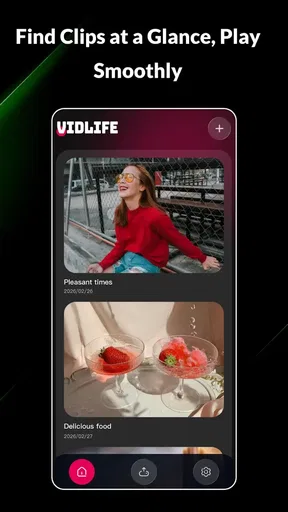
The first thing I noticed about VidLife-Vision Splendor is its sleek and intuitive interface. Right from the get-go, it feels like you’re about to embark on a creative journey. The app is available on both Android and iOS, making it accessible to pretty much anyone with a smartphone. Downloading and setting it up was a breeze, and within minutes, I was ready to start exploring its features.
User-Friendly Interface
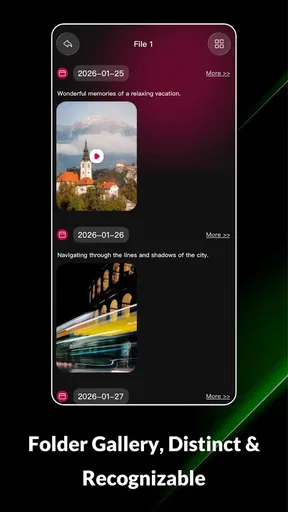
Let me tell you, the design team behind this app deserves a medal. The interface is incredibly user-friendly, which is a big win for folks who aren't tech-savvy. Everything is neatly organized, and the icons are intuitive. Whether you’re a pro or a newbie, you’ll find navigating through the app a walk in the park.
Features Galore
This app is packed with features that let you transform your videos into something spectacular. Here are a few that really stood out to me:
- Advanced Editing Tools: From trimming and cropping to more advanced features like keyframe animation, it’s got it all.
- Filters and Effects: You can choose from a vast array of filters and effects to give your videos a cinematic touch.
- Music and Sound Effects: Adding a soundtrack is as simple as dragging and dropping. Plus, there’s an extensive library of sound effects to choose from.
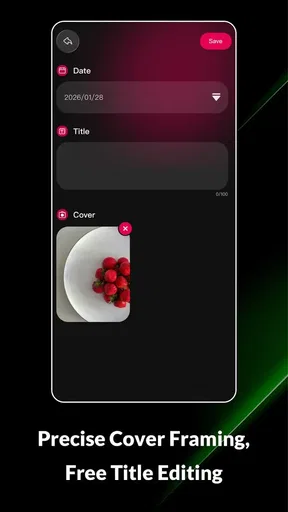
- Text and Titles: Add cool text animations and titles to enhance your narrative.
Performance and Speed
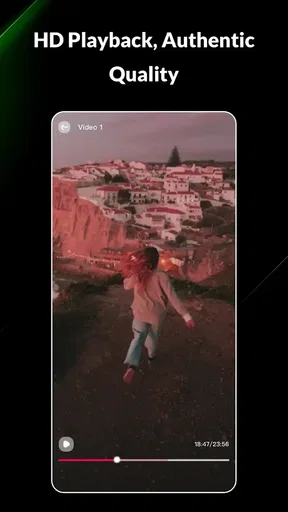
I’ve used a fair share of video editing apps that make my phone feel like it’s about to take off. Thankfully, VidLife-Vision Splendor runs smoothly without any lag, even when working on high-resolution videos. Kudos to the developers for optimizing performance!
Sharing Made Simple
Once you’ve finished editing, sharing your masterpiece is a piece of cake. The app supports direct sharing to various platforms like Instagram, YouTube, and Facebook, so your videos can reach your audience in no time. It’s perfect for content creators looking to streamline their workflow.
Room for Improvement?
While VidLife-Vision Splendor is pretty awesome, there's always room for a little fine-tuning. I did notice that the app could benefit from a few more tutorials for beginners. Although the interface is user-friendly, some folks might appreciate a bit more guidance when it comes to using the more advanced features.
Additionally, offering more cloud storage options would be a great addition. Many users are moving towards cloud-based solutions, and having this feature would definitely enhance the app’s appeal.
Choosing it over familiar alternatives
Compared with the usual choices, the right question is what kind of editing I want to do on a phone. A basic social-media editor can be quicker when I only need a template or a fast caption; a desktop editor is more comfortable for long projects and detailed review on a large display. This app makes more sense when I want a mobile editing space that brings trimming, visual treatment, sound, titles, and animation into one creative workflow.
That breadth is useful, but it also asks more of a beginner than a single-purpose tool would. I’d start with one short video and learn one tool at a time rather than layering effects, text, and sound all at once. For someone who edits occasionally, a simple editor may be less intimidating. For someone who likes shaping a clip beyond a basic trim, the additional creative options are a stronger reason to explore it.
A realistic way to use it
Imagine I’ve taken several short clips at a weekend gathering and want to share a compact recap with relatives. I’d first pick the moments that actually tell the story, then trim away pauses, arrange the clips, and use a title only if it adds context. A restrained filter and a soundtrack can help the pieces feel connected, but I’d listen through the result before sending it; music that overwhelms voices can make a family video less enjoyable.
I’d finish the edit while I have time to review it, then share when the connection is reliable. If I’m working on the train, I’d treat that ride as a chance to make progress rather than assume it is the ideal time to publish. This division between creative work and sending the final file is a small workflow choice, but it reduces the pressure to rush through both.
Who will get the most from it
I can see this fitting people who regularly make short personal videos or social posts and want more control than a one-tap filter gives them. The mix of visual effects, sound, titles, and keyframe animation suggests room to experiment as skills grow. It may also suit someone who prefers making a complete edit on a phone rather than moving every small project to a computer.
I’d steer away from it if my priority were a fully guided beginner course, a guaranteed cloud-based handoff, or a desktop-style environment for complex long-form work. A newcomer can still begin here, but should expect to learn by trying the tools, and anyone who needs reliable access to a specific online workflow should test that workflow before depending on it. A more focused editor may be the better choice when speed and simplicity matter more than creative control.
What the store details mean in practice
The app is free, has an Everyone content rating, and is listed at 4.0 on average from around 139 ratings, with over 50,000 installs. I read that as a useful sign that people are trying it, not as a substitute for checking whether its particular editing style suits me. Its release date is March 11, 2026, and version 1.1.0 requires Android 7.0 or later, so I’d check that an older Android phone meets the minimum before planning a project around it.
Those details also shape how I’d approach a first try: because there is no purchase price to weigh, I’d test a small, non-urgent edit rather than immediately move an important project into a new workflow. The best early check is practical: can I find the tools I need, make a short sequence, review it comfortably, and share it in the way I expect? If those steps feel natural, there is a good reason to keep exploring.
Connectivity verdict
For me, the most sensible way to use this editor is to separate making a video from distributing it. The creative part can happen in short sessions, while a stable connection is the safer moment to share finished work or rely on online steps. I would not choose an app for a connection-sensitive deadline without first rehearsing that exact process with an unimportant clip.
That cautious approach does not take away from the appeal of editing on a phone. It simply keeps expectations realistic: a mobile editor can make it easier to shape footage as part of everyday life, while network conditions still affect when and how smoothly I can finish the job. If my routine includes dependable access when I need to send a video, this feels like a reasonable app to try; if I often work under strict data limits or need a dependable offline workflow, I’d compare alternatives before committing.
Final Verdict
Overall, VidLife-Vision Splendor is a stellar choice for anyone looking to edit videos on the go. It combines a user-friendly experience with powerful editing tools, making it suitable for both amateurs and seasoned editors. Whether you’re putting together a quick birthday montage or a professional-grade short film, this app has got you covered.
So, if you’re ready to unleash your creativity and turn those rough clips into a polished video, head over to the app store and give VidLife-Vision Splendor a try. Trust me, your videos will thank you for it!
Pros
- User-friendly interface for easy navigation.
- High-quality video editing tools included.
- Wide variety of filters and effects available.
- Supports multiple video formats.
- Regular updates enhance app performance.
Cons
- Requires a stable internet connection.
- Some features locked behind a paywall.
- Occasional crashes on older devices.
- Limited free storage for media files.
- Ads can be intrusive during editing.
FAQs for VidLife-Vision Splendor
What is VidLife-Vision Splendor and what does it offer?
VidLife-Vision Splendor is a comprehensive video editing app available for both Android and iOS. It offers a suite of professional editing tools, including filters, transitions, and special effects, aimed at both beginners and experienced editors. The app also supports high-resolution video exports, making it ideal for content creators looking to produce quality videos directly from their mobile devices.
Is VidLife-Vision Splendor free to use, or does it require a subscription?
VidLife-Vision Splendor offers a free version with basic features and watermarked exports. For advanced tools and ad-free experience, users can opt for a subscription model. The subscription unlocks premium features, additional effects, and allows for watermark-free exports, providing an enhanced editing experience for serious users.
How user-friendly is VidLife-Vision Splendor for beginners?
VidLife-Vision Splendor is designed with an intuitive interface that caters to beginners. The app includes tutorial guides and a user-friendly layout, making it easy for novice editors to navigate and learn. It provides drag-and-drop functionality and simple controls, enabling users to create professional-quality videos without a steep learning curve.
Can VidLife-Vision Splendor handle high-resolution video editing?
Yes, VidLife-Vision Splendor supports high-resolution video editing, including 4K footage. This capability ensures that users can edit and export videos in high quality, making it suitable for professional projects. The app's performance is optimized to handle large files smoothly, although the experience may vary based on device specifications.
What devices are compatible with VidLife-Vision Splendor?
VidLife-Vision Splendor is compatible with a wide range of Android and iOS devices. It requires Android version 6.0 or higher and iOS version 11.0 or later. The app is optimized to run on both smartphones and tablets, although for the best experience, a device with a strong processor and ample RAM is recommended.


